If registration or notification emails from noreply@cicloudpro.com are delivered to the spam folder, this is usually not caused by an internal block within your organization. In most cases, Gmail has temporarily lowered trust for the sender because some recipients previously marked these emails as spam.
Why this happens
- The sender address noreply@cicloudpro.com is blocked by your company’s mail security.
- Google may classify the emails as spam due to past user feedback.
Recommended solution
The most effective solution is to whitelist the sender at the Google Workspace level. This ensures that emails are delivered to the inbox for all users in your organization.
How to whitelist noreply@cicloudpro.com in Google Workspace
Step 1 – Sign in to the Admin Console
- Go to https://admin.google.com
- Log in using a Google Workspace administrator account
Step 2 – Open Gmail security settings
- Navigate to Apps → Google Workspace → Gmail
- Open Spam, phishing and malware
Step 3 – Add the sender IP addresses to the whitelist
- Locate the section Approved senders or Email whitelist
- Add the following IP addresses under IP addresses:
- IPv4:
83.149.93.212 - IPv6:
2001:1af8:4900:a031:2:0:4b15:A1
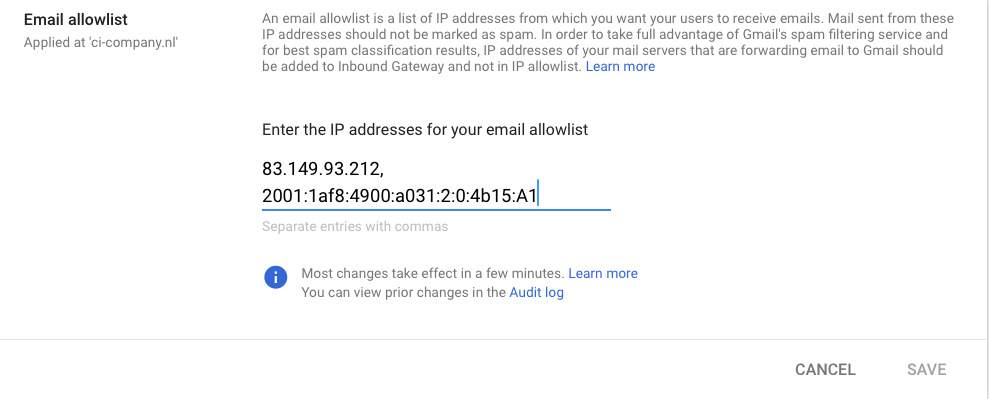
Save the settings. After this change, emails from noreply@cicloudpro.com will be delivered directly to users’ inboxes instead of the spam folder.
Optional additional step for individual users
If a user sees the email in their spam folder before whitelisting is applied, marking the message as “Not spam” in Gmail can help improve sender reputation over time.
Ongoing monitoring
Email delivery and sender reputation are continuously monitored. If issues reoccur, applying the whitelist as described above is usually sufficient to restore reliable delivery.
If problems persist after whitelisting, please contact your IT administrator or support.